Taking on the Azure Cloud Resume Challenge
I recently decided to take on The Azure Cloud Resume Challenge as practical way to get more hands-on experience with Azure concepts and products. In this post, I'll provide an overview of each step in the challenge and discuss the decisions I made, challenges I faced, and some of the things I learned along the way.
Step 1: Azure Fundamentals Certification
The first step of the challenge was to acquire the Microsoft Certified: Azure Fundamentals certification. The AZ-900 exam required to attain the certification is a beginner level exam that covers general cloud concepts, and a high-level overview of Azure services and features.
This was the easiest step in the challenge for me because it was already done. I acquired this certificate well before taking the challenge, but it would have been a logical first step to get familiar with the core cloud and Azure concepts quickly.
Steps 2-3: Creating the HTML and CSS
The second and third steps of the challenge were to create my resume as an HTML website and style it using CSS.
I was already very familiar with HTML and CSS, so this was a rather straightforward ask.
However, because I had already been generating my traditional PDF resumes using Markdown and Jinja2 templates, I knew I ultimately wanted to also template out my HTML cloud resume and generate it from Markdown as well.
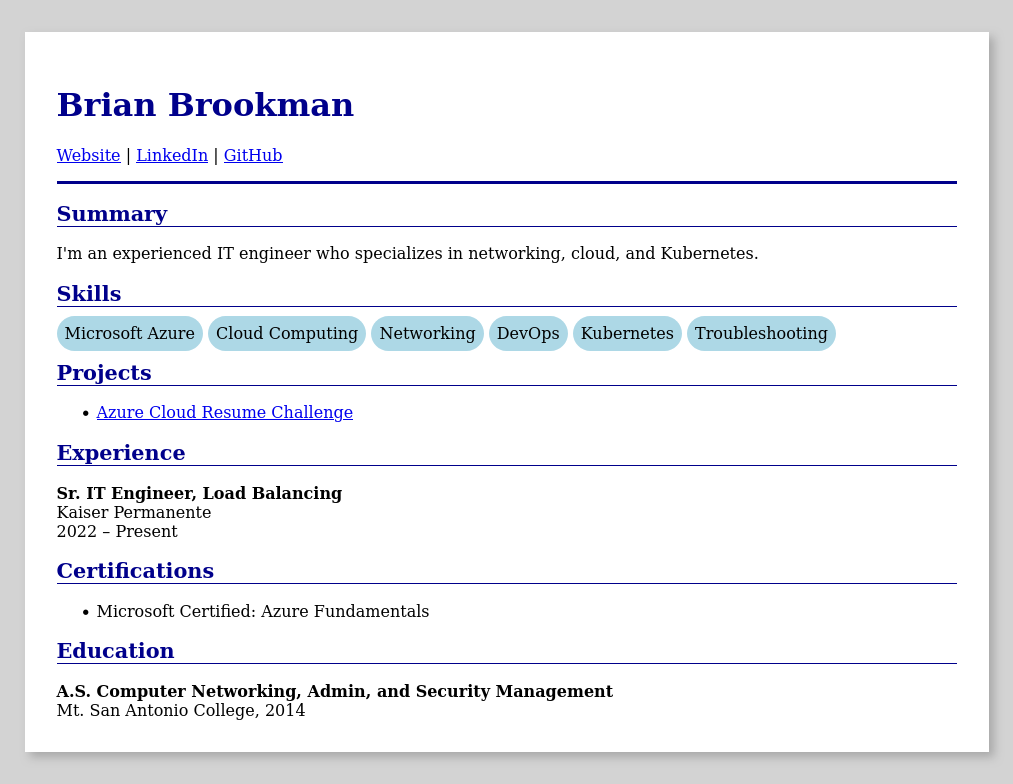
While I could have implemented the Jinja templating at this stage, it would have used Git and other tools introduced later in the challenge steps. So, to avoid putting the cart before the horse, I just created a fairly simple HTML resume with inline CSS to get started with.
The simple HTML source rendered in a browser looked like this:
Step 4: Deployment on Azure storage
With an initial resume page in hand, the next step was deploying it as a static website on Azure Storage.
Keeping within the spirit of challenge, I wanted to start by configuring everything via the Azure Portal. Setting up the storage account and enabling static website hosting was simple enough enough following Microsoft's guide.
One thing I learned from this step though was that the Static website feature needs to be enabled first because it creates the "$web" container which the content must be served from. This was different than I was familiar with in AWS S3 where there's no requirement to upload files within containers (folders).
Steps 5-6: HTTPS with a custom domain name
The next steps in the challenge were to add HTTPS to the static site using Azure CDN with a custom domain name on Azure DNS.
This is where things started getting a little interesting because I was already hosting my domain's DNS using another provider, and Azure CDN was being phased out in favor of Azure Front Door. Using the docs and a bit of trial and error, here's how I managed to complete these steps:
- I created a new Azure Front Door profile
- I selected the Storage account static site as the origin
- I enabled caching for better performance and less origin requests
- I created a new zone in Azure DNS for a subdomain of my primary domain
- I delegated the subdomain zone in my DNS provider to Azure's DNS nameservers
- I added an Alias Recordset for the zone apex pointing to my Front Door endpoint
- In Front Door, I associated the new custom domain name with the Front Door endpoint
- While there, I also enabled HTTPS with an AFD managed certificate
Steps 7-11: Adding a visitor counter
The next steps in the challenge were to add a visitor counter to the Resume page using JavaScript to call a custom Python API (complete with code tests) running in Azure Functions to fetch and update a value within CosmosDB.
Because the client JavaScript would be a consumer of the API, and the API would in turn be a consumer of Cosmos DB, it made some sense to start with the Cosmos DB step first and work backwards from there.
Cosmos DB
Having never developed anything with Cosmos DB before, I really only had a conceptual understanding of Cosmos DB, and NoSQL in general. Even though this project was about a as simple as it gets with Cosmos DB, I used it as a good opportunity to dive deeper and learn how it works.
The biggest learning opportunity presented itself when first creating the Cosmos DB container to store the data. In the Azure Portal, Cosmos DB requires you to set a partition key path when creating a container. This led me to dive into how the partitioning works. The short summary is that partition keys are used to subdivide the items defined within a container. Items that share the same partition key value are grouped into logical partitions, which are then mapped to one or more physical partitions. This means the critical consideration for performance and scalability, are the logical partitions created by the partition key values.
Getting back to my visitor counter implementation, I knew the partition key I set wasn't going to matter much since I'd really only need a single item for the counter. Trying to think ahead though, I thought it might be useful to allow for new versions with a version field as the partition key path. Here's where I ended up my extremely simple counter item:
{
    "id": "",              // Randomly generated when empty
    "count": 0,            // Count value
    "version": "v1",       // Counter version (partition key)
    "_ts_creation": null   // Unix creation timestamp
}
I used _ts_creation to store the creation timestamp because Cosmos DB automatically updates a system generated _ts field with the last modification timestamp. I figured having the creation time might also be helpful later for putting the count value within a basic context of time (i.e. "X number visitors, since Y date").
Azure Functions
With the database for the visitor counter configured, the next logical step was to develop and deploy the API using Python as an Azure Functions App.
Once again, this step had me diving into the docs—this time for Azure Functions. Because Azure Functions is a serverless offering, how it works under the hood is, by design, abstracted so you don’t have to worry about the underlying infrastructure. Understandably then, the documentation only focuses on usage and configuration options, without mentioning the architecture. If you’re like me though, you like understanding how things work, even if only at a high-level. So, I started out on a quest through the jungles of past conference talks and blog posts. To summarize the key points I took home:
- The newer Flex Consumption Plan uses new architecture, designed for faster scaling.
- Its control-plane components are built on a microservices design.
- The Frontend and Scale Controller scales host VMs and HTTP requests
- The Data Role manages nested VM lifecycles
- The Controller and FPS manages the containers within the nested VMs
- State data is stored on Cosmos DB
- Functions run within Hyper-V nested VMs in containers, pulling in your code from Azure Storage at startup.
I also learned that using the flex consumption plan meant I wouldn't be able to play around with the code directly in the Azure Portal. Instead, I'd need to create the initial function locally and push it to Azure. Of course, this was going to be the end state anyways. Since I was already using VS Code, I opted for the extension and got started with an included template.
When it came time to add the Cosmos DB SDK Bindings to interact with the database, I found the provided samples were a bit incomplete. I also ran into incorrect links while navigating the docs. Eventually though, I found what I needed in the ContainerProxy docs and developed the function app and tests using Pytest. Once again, you can find the final code for the API Azure function app on my GitHub.
After the app was deployed, I restricted network access for my Cosmos DB account to only Azure services. There were a few final steps I also needed to do before it could be used by my frontend in a web browser:
- First, I needed to add my frontend’s URL to the CORS list for the function.
- This was necessary because my Azure function wouldn't be served from the same domain as my resume site.
- Next, I also added another custom domain for the Azure function.
- This was mainly so the the function app endpoint in the client JavaScript wouldn't need to be updated if the function app was moved or redeployed
I could have also used path based routing in Front Door to direct requests for the API to my Azure Function endpoint instead. This was my ultimate goal, but I wanted to keep building iteratively, avoiding the extra bit of complexity for the time being. So pushing forward, I added it to my technical debt backlog and moved on to the next step.
WIP
The next steps are still in progress, so stayed tuned!