Taking on the Azure Cloud Resume Challenge
I recently decided to take on The Azure Cloud Resume Challenge as a practical way to get more hands-on experience with Azure concepts and services. In this post, I'll provide an overview of each step in the challenge and discuss the decisions I made, challenges I faced, and some of the things I learned along the way.
Step 1: Azure Fundamentals Certification
The first step of the challenge was to acquire the Microsoft Certified: Azure Fundamentals certification. The AZ-900 exam required to attain the certification is a beginner level exam that covers general cloud concepts, and a high-level overview of Azure services and features.
This was the easiest step in the challenge for me because it was already done. I acquired this certificate well before taking the challenge, but it would have been a logical first step to get familiar with the core cloud and Azure concepts quickly.
Steps 2-3: Creating the HTML and CSS
The second and third steps of the challenge were to create my resume as an HTML website and style it using CSS.
I was already very familiar with HTML and CSS, so this was a rather straightforward ask.
However, because I had already been generating my traditional PDF resumes using Markdown and Jinja templating, I knew I ultimately wanted to also template out my HTML cloud resume and generate it from Markdown as well.
While I could have implemented the Jinja templating at this stage, it would have used Git and other tools introduced later in the challenge steps. So to avoid putting the cart before the horse, I just created a fairly simple HTML resume with inline CSS to get started with.
The simple HTML source rendered in a browser looked like this:
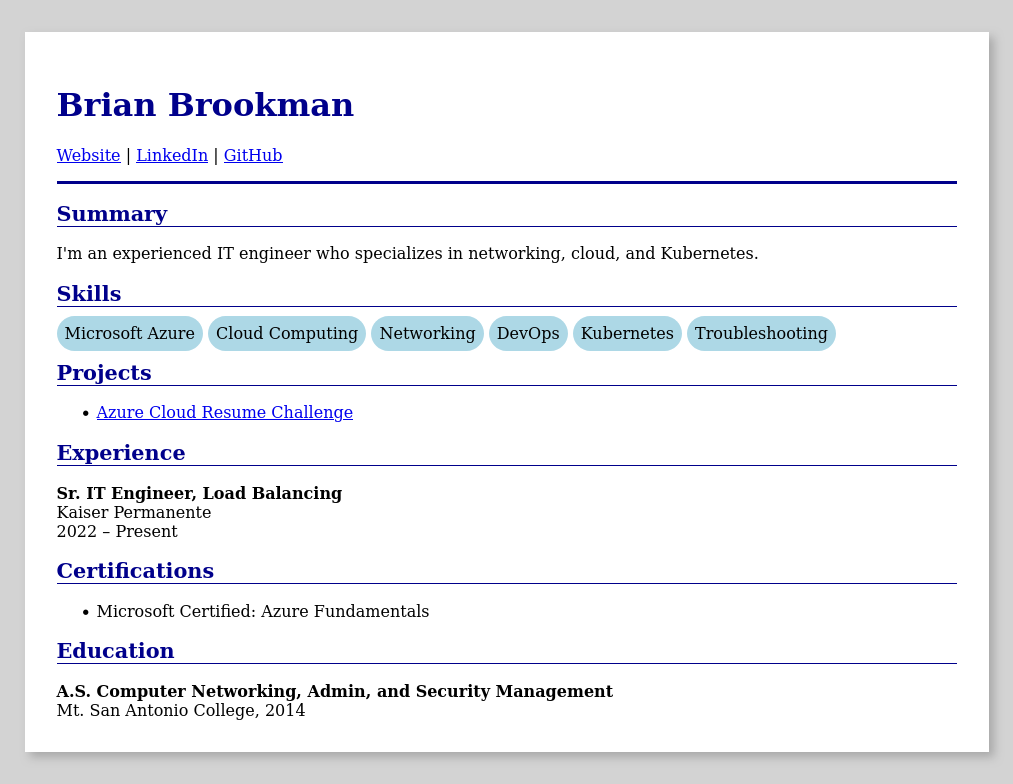
Step 4: Deployment on Azure storage
With an initial resume page in hand, the next step was deploying it as a static website on Azure Storage.
Keeping within the spirit of challenge, I wanted to start by configuring everything via the Azure Portal. Setting up the storage account and enabling static website hosting was simple enough enough following Microsoft's guide.
One thing I learned from this step though was that the Static website feature needs to be enabled first because it creates the "$web" container which the content must be served from. This was different than I was familiar with in AWS S3 where there's no requirement to upload files within containers (folders).
Steps 5-6: HTTPS with a custom domain name
The next steps in the challenge were to add HTTPS to the static site using Azure CDN with a custom domain name on Azure DNS.
This is where things started getting a little interesting because I was already hosting my domain's DNS with another provider, and Azure CDN was being phased out in favor of Azure Front Door. Using the docs and a bit of trial and error though, here's how I managed to complete these steps:
- I created a new Azure Front Door profile
- I selected the Storage account static site as the origin
- I enabled caching for better performance and less origin requests
- I created a new zone in Azure DNS for a subdomain of my primary domain
- I delegated the subdomain zone in my DNS provider to Azure's DNS nameservers
- I added an Alias Recordset for the zone apex pointing to my Front Door endpoint
- In Front Door, I associated the new custom domain name with the Front Door endpoint
- While there, I also enabled HTTPS with an AFD managed certificate
Steps 7-11: Adding a visitor counter
The next steps in the challenge were to add a visitor counter to the Resume page using JavaScript to call a custom Python API (complete with code tests) running in Azure Functions to fetch and update a value within CosmosDB.
Because the client JavaScript would be a consumer of the API, and the API would in turn be a consumer of Cosmos DB, it made some sense to start with the Cosmos DB step first and work downstream from there.
Cosmos DB
Having never developed anything with Cosmos DB before, I really only had a conceptual understanding of Cosmos DB, and NoSQL in general. Even though this project was about a as simple as it gets with Cosmos DB, I used it as an opportunity to dive deeper and learn how it works.
The biggest learning opportunity presented itself when first creating the Cosmos DB container to store the data. In the Azure Portal, Cosmos DB requires you to set a partition key path when creating a container. This led me to dive into how the partitioning works. The short summary is that partition keys are used to subdivide the items defined within a container. Items that share the same partition key value are grouped into logical partitions, which are then mapped to one or more physical partitions. This means that the critical consideration for performance and scalability, are the logical partitions created by the partition key values.
Getting back to my visitor counter, the partition key I set wasn't going to matter much since I'd really only need a single item for the counter. Trying to think ahead though, I thought it might be useful to allow for multiple counters grouped by a version field as the partition key path. Here's where I ended up with my extremely simple counter item:
{
    "id": "",              // Randomly generated when empty
    "count": 0,            // Count value
    "version": "v1",       // Counter version (partition key)
    "_ts_creation": null   // Unix creation timestamp
}
I used _ts_creation to store the creation timestamp because Cosmos DB automatically updates a system generated _ts field with the last modification timestamp. I figured having the creation time might also be helpful later for putting the count value within a basic context of time (i.e. "X visitors, since Y date").
Azure Functions
With the database for the visitor counter configured, the next logical step was to develop and deploy the API using Python in an Azure Functions App.
Once again, this step had me diving into the docs—this time for Azure Functions. Because Azure Functions is a serverless offering, how it works under the hood is abstracted so you don’t have to worry about the underlying infrastructure. Understandably then, the documentation only focuses on usage and configuration options, without mentioning the architecture. I wanted to understand how it works though, even if just at a high-level. So, I started out on an adventure through the jungles of past conference talks and blog posts. The key points I took home were:
- The newer Flex Consumption Plan uses new architecture, designed for faster scaling.
- Its control-plane components are built on a microservices design.
- The front end and Scale Controller scales host VMs and HTTP requests
- The Data Role manages nested VM life-cycles
- The Controller and FPS manages the containers within the nested VMs
- State data is stored on Cosmos DB
- Functions run in containers within Hyper-V nested VMs, pulling in your code from Azure Storage at startup.
I also learned that using the flex consumption plan meant I wouldn't be able to play around with the code directly in the Azure Portal. Instead, I'd need to create the initial function locally and push it to Azure. Of course, this would be the end goal anyways. Since I was already using VS Code, I opted for the extension and got started with an included template.
When it came time to add the Cosmos DB SDK Bindings to interact with the database, I found the provided samples were a bit incomplete. I also ran into incorrect links while navigating the docs. Eventually though, I found what I needed in the ContainerProxy docs and developed the function app and tests using pytest. You can find the final code for the API Azure function app on my GitHub.
After the app was deployed, I restricted network access for my Cosmos DB account to only Azure services. There were a few final steps I also needed to do before it could be used by my front end in a web browser:
- First, I needed to add my front end’s URL to the CORS list for the function.
- This was necessary because my Azure function wouldn't be served from the same domain as my resume site.
- Next, I also added another custom domain for the Azure function.
- This was mainly so the the function app endpoint in the client JavaScript wouldn't need to be updated if the function app was moved or redeployed
I could have also used path based routing in Front Door to direct requests for the API to my Azure Function endpoint instead. This was my ultimate goal, but I wanted to keep building iteratively, avoiding the extra bit of complexity for the time being. So pushing forward, I added it to my technical debt backlog and moved on to the next step.
JavaScript counter
It was finally time to add the visitor counter to my resume page and use JavaScript to call the visitors API.
For the counter itself, I simply added a footer section and wrapped the text for the counter value in a span with an id to target in my JavaScript code.
I already had enough front-end JavaScript experience from building small web apps over the years to know what needed to be done and generally how to do it. However, I did need to make a pit stop for a quick refresher on why the await keyword is necessary when calling response.json(). Of course, the answer is obvious now—it returns a promise. Anyways, here’s a snippet of the code:
<script>
async function update_visitor_counter(method='GET'){
	try{
		const response = await fetch('https://api.resume.bcbrookman.com/api/visitors',{ method: method });
		const data = await response.json();
		document.getElementById('visitor-count').textContent = data['visitors'];
	}
	catch(error){
		console.error(error);
	}
}
document.addEventListener("DOMContentLoaded", (event) => {
	update_visitor_counter('POST');
});
</script>

<footer style="text-align: center; margin-top: 2em; color: grey;">
	Visitors: <span id="visitor-count">---</span>
</footer>
Step 12. Infrastructure as Code
The next step was to use Infrastructure as Code (IaC) to manage the Azure resources instead of the Azure portal. The challenge specifically called for using ARM templates, but I opted for Bicep instead.
Exporting resources
Rather than recreate all the Azure resources from scratch, I first started by exploring options for managing the existing resources directly with Bicep.
I learned that the Bicep VS Code extension has a built-in feature to do just that. Using the Insert Resource feature, you provide it a resource ID and it creates the Bicep definition in your Bicep file. Unfortunately, this didn't work well for me. The definitions it created included options that were immediately highlighted as incorrect, and which failed to deploy.
So instead, I navigated to the resource group in the Azure portal and exported its entire Bicep configuration under Automation > Export template. This worked surprisingly well, but did display a warning that not all resources could not be exported. Nearly all 134 of the resources that did export were able to redeploy successfully, but there were a few failures for things like modifying read-only resources. While it still seemed promising, there were some big problems I would need to solve for:
- There were unnecessary resources included that I'd have to maintain.
- Deploying from scratch would be untested, and likely not possible.
- Configurations were hard-coded and not easily changed.
- It was not meant to be reusable.
Organizing modules
I ultimately decided the best way to solve for the direct export problems would be to just handcraft the Bicep myself. Creating only the resources necessary would help keep the code maintainable, and reorganizing it into modules with parameters would allow for deployment into multiple environments.
Here’s what I eventually landed on for the module structure:
infra/
└── bicep/
	├── env/
	│   ├── dev.bicepparam
	│   └── prod.bicepparam
	├── modules/
	│   ├── api.bicep
	│   ├── data.bicep
	│   ├── edge.bicep
	│   └── staticSite.bicep
	└── main.bicep
I separated the modules by function rather than resource type to separate concerns and ensure they stayed loosely coupled. This ended up helping me avoid what would have been a circular dependency with DNS records where the DNS module would have needed to be both a consumer and provider of another module.
Developing the code
With an overall idea of how I'd organize the modules, I started defining the resources. Having all the existing resources already exported still ended up being very useful here as it allowed me to easily copy in the current configurations without needing to manually translate between Azure portal options and their corresponding Bicep declarations. I also found the Bicep export feature to be useful for debugging, especially with interpolated values. For example, the what-if Azure CLI option only displays a reference() function to the resource being looked up, and the Azure portal doesn't always display invalid configurations. Being able to check the final string applied after interpolation in the exported Bicep was helpful.
One of the hardest parts about creating the Bicep code (and computer science, in general) was naming things. I found both the Azure naming convention guidance and Azure resource abbreviation recommendations pages helpful for this. I also made the job harder on myself because I still wanted to be able to manage my (badly named) existing resources. To do that, I made most of the resource names a param I could override in my prod environment. This ended up being more trouble than it was worth though, so once my dev environment was able to be fully deployed with Bicep, I use the code to deploy a new prod environment, only overriding the param for my prod DNZ zone.
I also ran into a lot of trouble dealing with managed certificates in Bicep. Azure front door does it differently than function apps, and the managed certificate resources seem to be read-only. I may revisit it later, but for the time being, I decided to just manually associate the certificates as a final step after deployment, while still ensuring that the Bicep could be redeployed without removing the associations.
Overall, working with Bicep was a good experience. In many ways, the DSL reminded me of Terraform's HCL. Syntax aside though, the major difference is that ARM templates, and Bicep by extension, don't require state to be captured externally. Reconciling the current and desired states is all handled by Azure Resource Manager (ARM). This makes everything in Azure an object you can export and directly work with as IaC (at least, in some capacity).
Step 13. Source Control in GitHub
The next step was to create a GitHub repository to store and version control the code. The challenge prescribed creating the repo for only the back-end code at this point since a separate repo would be created for the front end later. However, because I was already very familiar with GitHub and had already been using a single repo approach throughout the challenge, I instead used this step to update my resume HTML using Jinja templating.
Jinja templating
As mentioned back in Steps 2-3, I use an existing private repo for my resume. In that repo, I store everything from skills to contact info as individual items. I then assemble my resume from these individual components using Jinja templates. This system allows me to efficiently build tailored versions of my resume, while tracking them all with Git. Since my cloud resume would really just be a new web version of my existing resume, using my existing repo to build it made perfect sense. It would also allow me to continue maintaining my resume content in only one common location and avoid drift.
As an example of how it works, here's a Jinja snippet for my skills section:
{% set skills = resume.skills|filter_on_selected_tags() -%}
{% if skills -%}
<section id="skills">
	<h2>Skills</h2>
	<ul>
		{%- for skill in skills %}
		<li>{{ skill.text }}</li>
		{%- endfor %}
	</ul>
</section>
{% endif -%}
As you can see, it's just a straightforward loop. The interesting bit is the filter_on_selected_tags() custom filter which filters my list of skills on a set of tags or keywords I provide at runtime. Applying this filter to each section of my resume allows me to dynamically create a resume tailored to the set of tags I provide it.
One potential extension of this for my cloud resume could even be to dynamically serve the resume content instead of serving it statically. This would allow me to send someone a link to a tailored version of my resume, with the filtering tags set in a query string parameter. Using Flask might be a good choice for this because it's lightweight and leverages Jinja by default.
Syncing resume content
After updating my private resume repo to generate my cloud resume content, I also needed a way automatically keep my cloud-resume repo updated with any content changes I might make in the future.
The solution was to use GitHub actions in my private resume repo to automatically sync changes to my public cloud-resume repo. The workflow does the following:
- Checks out both repos
- Copies site files into the local cloud-resume repo
- Checks whether anything has changed
- Pushes the changes to a new branch
- Opens a new pull request (PR)
Steps 14-15. CI/CD with GitHub Actions
The next two steps of the challenge were to implement CI/CD with GitHub Actions for both the back-end components as well as the front end in a new repository. Even though I used a single repository for this project, the basic approach was the same.
Environment consistency
My general preference for CI/CD workflows is to build them so they can also be run locally. Tools like Dagger and act can help with this, but the basic idea is to make the execution environments for both local and CI/CD tasks as similar as possible. The way I did that for this project was by configuring my GitHub Actions jobs to run within the same devcontainer image I would develop in locally.
This was a pattern I had followed before, but I had never used the devcontainers/ci action to do it. This action made it simple to ensure the same devcontainer configuration is used for building both my local and CI job environments. It also allowed me to push and pull from a container registry to speed up the container builds and CI jobs through layer caching.
Here are the relevant parts of the devcontainer and GHA workflow configurations:
{
	"name": "cloud-resume-cicd",
    "build": {
        "dockerfile": "../Dockerfile"
    }
}
jobs:
    runs-on: ubuntu-latest
    permissions:
      contents: read
      packages: write
    steps:
	<...>
      - uses: devcontainers/ci@v0.3
        with:
          imageName: ghcr.io/bcbrookman/cloud-resume-cicd
          cacheFrom: ghcr.io/bcbrookman/cloud-resume-cicd
Command consistency
Having consistent environments for testing doesn’t help much if you aren’t running all the same tests across them. Wrapping commands in a Taskfile has worked well for me in the past, so I decided to use it for this project as well. The idea is to take most of the logic out of the workflow itself and maintain a consistent interface for running the commands both locally and within CI jobs. Here's an example of running my initial static tests with just one command (task outputs omitted for brevity).
$ task test:static
task: Task "deps:pre-commit" is up to date
task: [test:pre-commit] pre-commit run --all-files
...
task: Task "deps:azcli" is up to date
task: [test:bicep:lint] az bicep lint --file infra/bicep/main.bicep
...
task: Task "deps:python" is up to date
task: [test:pytest] pytest -v app/api
...
Setting up CI/CD this way with consistency in both the execution environments and commands can be more complicated at first, but it also make things more repeatable and can save a lot of headache later.
Step 16. This Blog post
The final step of the challenge was to publish this blog post describing some of things I learned along the way.
If you’ve made it this far, you’ve already seen my approach to writing this post. My goal wasn’t to provide a step-by-step tutorial on completing the entire challenge. Rather, it was to provide the high level steps I personally took, and to highlight some of the decisions, problems, and lessons I learned along the way.
Despite already being familiar with many of the topics in the challenge, it was still a great learning experience. Getting hands-on with Azure services like Cosmos DB, Functions Apps, Front Door, and Bicep was especially helpful. If you're thinking of taking on the challenge too, I'd highly recommend it. Just don't expect to knock it all out in one weekend. Take your time going down the rabbit holes, learning the hard way, and just have fun with it!
Updates
I've made a few notable updates since completing the challenge. As always, the code for the entire project, including these updates can be found on my GitHub.
Switching to CloudFlare
While using Azure Front Door for this project was a good learning exercise, it was also a bit overkill for my long-term needs, so I ended up switching to CloudFlare for HTTPS and caching instead. To accomplish this, I performed the following:
- Created a CNAME in CloudFlare pointing to my Azure Storage account's endpoint
- I defined the CloudFlare configurations as code using Pulumi's Python module).
- Configured a Custom Domain in the Azure Storage account
- Used indirect CNAME validation to keep the domain name "Proxied" in CloudFlare
- Without a custom domain configured, the site returns an HTTP 404 because the Host header in the request doesn't match a storage account endpoint.
- For added security, I also restricted public access to my Azure Storage account to CloudFlare's IP Ranges
- Unfortunately, this is a static configuration that won't update automatically if CloudFlare ever changes their IP ranges, but I may look at automating updates in the future.
The main challenge I faced in setting this up was deploying the DNS records with Pulumi depended on outputs from the Bicep deployment, while the Bicep deployment depended on the DNS records being deployed by Pulumi to validate the custom domains. I escaped this circular dependency problem by simply removing the custom domains from Bicep, and instead running imperative Azure CLI commands to add them after deploying the DNS with Pulumi. While not strictly declarative, I orchestrated all the deployment in my Taskfile so they would still remain idempotent and repeatable.